Invoice Data Extraction and How to Automate It
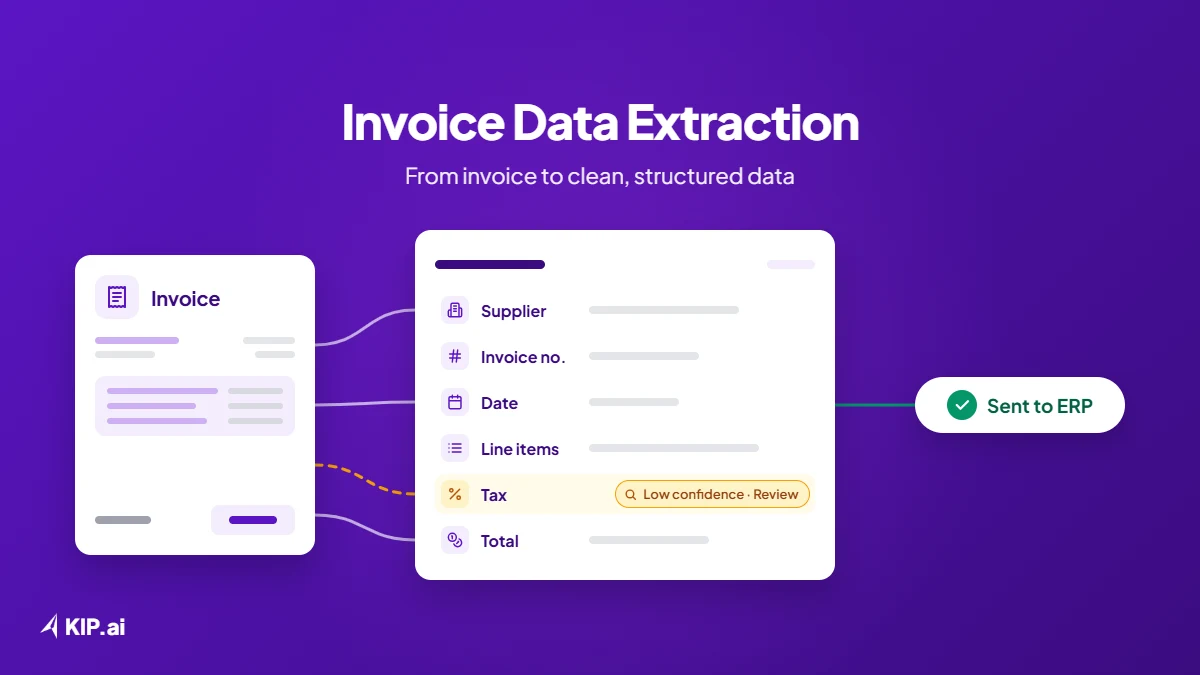
Invoice data extraction is the process of turning an invoice into structured data: fields such as the supplier, invoice number, invoice date, line items, tax and total, ready to check and post to the ERP (your accounting system). KIP.ai reads these fields automatically, so your team reviews the data instead of retyping it.
KIP.ai by Axrail automates invoice data extraction for finance and accounts payable (AP) teams that still enter invoice data into spreadsheets or the ERP by hand. Axrail is an AWS Premier Partner. This guide covers which fields are extracted, how AI extraction differs from invoice OCR, and how to automate the process from capture to posting.
What is invoice data extraction?
Invoice data extraction is reading an invoice and capturing its key information as structured fields that a system can use. Instead of a person retyping the supplier, dates, amounts and line items, software reads the document and outputs the values in a consistent format. The data is then ready to validate, match against purchase orders and post to the ERP.
The output is the same whatever the invoice looks like: a set of named fields. That consistency is what makes the next steps possible, from 3-way matching against documents such as the purchase order and delivery order to exporting the invoice data to Excel for a quick review.
What fields are extracted from an invoice?
Most invoice data extraction captures header fields and line items. Header fields identify the invoice: supplier, invoice number, invoice date, due date, purchase order (PO) number, tax and total. Line items describe what was billed: each description, quantity, unit price and line amount. Together they give finance teams what they need to check, match and post.
Generic example, not a customer. The values are made up and in one currency.
| Field | Example | Why it matters |
|---|---|---|
| Supplier | Supplier A | Links the invoice to the right supplier record |
| Invoice number | INV-1042 | Catches duplicates and gives a reference for queries |
| Invoice date | 1 October 2026 | Places the invoice in the right accounting period |
| Due date | 31 October 2026 | Drives payment timing and AP aging |
| PO number | PO-2210 | Lets the invoice be matched to the purchase order |
| Line items | 100 boxes of paper at 12.00 each (line amount 1,200.00) | Shows exactly what is billed, line by line |
| Tax | 120.00 | Needed for correct tax reporting |
| Total | 1,320.00 | The amount to approve and pay |
What is the difference between OCR and AI invoice data extraction?
OCR (optical character recognition) turns an image of an invoice into text, but it does not know which text is the invoice number and which is the total. AI invoice data extraction goes further: it identifies each field and line item, structures it, and scores how confident it is, so the data can be checked and used.
| Invoice OCR | AI invoice data extraction | |
|---|---|---|
| Output | Raw text from the page | Named fields and structured line items |
| Layouts | Rules are often set up layout by layout | Fields are identified by what they are, not where they sit |
| Line items | Text that someone rebuilds into rows | Rows with description, quantity, unit price and amount |
| Confidence | No score per field | A confidence score per field, so low-confidence values go to review |
| Next step | Someone still checks and retypes | Data is validated, matched and posted |
In short, OCR is only the first step. With KIP.ai, AI invoice processing adds the structure, the checks and the hand-off to the ERP, so the work is finished rather than just digitized.
Why is manual invoice data entry slow and error-prone?
Manual invoice data entry is slow because every field is read and retyped one document at a time, often into a spreadsheet and then again into the ERP. It is error-prone because a tired person can misread a digit, skip a line item or pick the wrong supplier, and those errors surface later, at matching or month-end close.
The problems usually come from the same places:
- Invoices arrive by email, WhatsApp, shared folders or paper, so collecting them takes time before entry even starts.
- Every field is retyped line by line, so the longest invoices take the most time.
- Data entered into a spreadsheet and then into the ERP is typed twice, which doubles the chances of a typo.
- Errors are found late, at matching or close, when they are harder to trace back to the source.
- Experienced team members spend their day on data entry instead of reviewing exceptions and working with suppliers.
For the business, slow and error-prone data entry has a real cost. Invoices that wait to be entered can miss early-payment discounts, and errors found at month-end close delay the close and the decisions that depend on it. Automated extraction removes this work at the start of the process.
How do you automate invoice data extraction?
To automate invoice data extraction, capture invoices from every source into one place, extract their fields and line items, validate the values against your records, send low-confidence fields to a person, approve, and post clean data to the ERP. Your team then checks the low-confidence fields instead of entering invoice data by hand.
- Consolidate. The system automatically compiles invoices into one place from different sources such as email, WhatsApp, shared folders, SFTP, API and your ERP.
- Extract. Read the header fields and every line item into structured data.
- Validate. Check the values against your records, such as the supplier list and the purchase order.
- Review low-confidence fields. A person checks the fields the system is least sure about and corrects them if needed.
- Approve. A second person approves the reviewed invoice under your delegation of authority (DOA).
- Post to the ERP. Send approved, clean data to the accounting system, or export it to Excel or CSV when your team needs a file.
How accurate is automated invoice extraction?
KIP.ai delivers 90% out-of-the-box extraction accuracy on supported documents, and teams spend 80% less time per document (15 to 3 minutes). Accuracy still depends on the document and its layout, so no system reads every field correctly. Low-confidence fields are flagged for review, so a person checks the values most likely to be wrong.
Treat any accuracy figure as a starting point, not a guarantee. The review step is what keeps a misread value out of the ERP, and the best test is your own invoices during the free trial of 7 days and up to 100 documents.
How does KIP.ai extract invoice data?
KIP.ai automatically compiles invoices into one place from different sources such as email, WhatsApp, shared folders, SFTP, API and your ERP. It reads your configured fields, such as supplier name, invoice date and total amount, plus every line item, and gives each field a confidence score. Low-confidence fields are flagged for your team to check before data is sent to the ERP. In KIP.ai, a maker reviews and a checker approves.
Every exception is flagged for your team to review and decide. Documents can be PDFs, scans, Excel or CSV files, among other formats. KIP.ai sends clean data to ERPs such as Xero, QuickBooks, Oracle NetSuite, and many more, and can also export clean data as CSV or Excel files. Extraction is the first step: KIP.ai then matches the data against your records, for example in 3-way matching.
FamilyMart Malaysia uses KIP.ai to read supplier invoices from email, validate the extracted fields against expected values and turn each invoice into an ERP-ready purchase order file for Microsoft Navision. In FamilyMart Malaysia’s business workflow, supplier invoices become purchase orders. Processing efficiency improves across a monthly volume of 2,000-3,000 invoices, with extraction and validation handled automatically rather than by hand. Read the FamilyMart Malaysia case study.
You can watch KIP.ai extract the invoice data and match it to the purchase order and delivery order in the AP 3-way matching sample in the live demo on gokip.ai. The demo has built-in sample documents, and no files or account are needed. When you are ready to try KIP.ai on your own invoices, start a free trial or book a demo with the Axrail team.
Frequently asked questions
Can you convert an invoice to Excel?
Yes. Once the fields and line items of an invoice are extracted, they can be exported as a spreadsheet for review or reporting. KIP.ai can export clean data as CSV or Excel files, and it also sends the data to ERPs such as Xero, QuickBooks, Oracle NetSuite, and many more, so one extraction serves both.
What file types can KIP.ai extract invoice data from?
KIP.ai extracts invoice data from PDFs, scans, Excel and CSV files, among other formats. Invoices can arrive from different sources such as email, WhatsApp, shared folders, SFTP, API and your ERP. KIP.ai compiles them into one place, extracts the fields, scores each one for confidence and flags low-confidence fields for your team to check before anything reaches the ERP.
What is a confidence score in invoice data extraction?
A confidence score shows how sure the extraction is about each value it read. In KIP.ai, each field gets a confidence score, and low-confidence fields are flagged for your team to check before data is sent to your ERP.
Does automated invoice extraction still need human review?
Yes. Automation removes the retyping, not the judgment. A person still reviews low-confidence fields and exceptions before anything is posted. In KIP.ai, a maker reviews and a checker approves, and every exception is flagged for your team to review and decide, so people stay in control of what reaches the ERP.
Can I try invoice data extraction with sample documents?
Yes. The live demo on gokip.ai uses built-in sample documents, so you do not need your own files or an account. You can watch KIP.ai extract the invoice data and match it to the purchase order and delivery order in the AP 3-way matching sample. When you are ready, start a free trial or book a demo with the Axrail team.